Install Widejoin on a WordPress site
To install Widejoin, you need WordPress 6.9 or later, PHP 8.2 to 8.4 and the MCP Adapter plugin 0.7.x on a site served over HTTPS. This guide walks through getting the ZIP, uploading it in wp-admin, how changes apply after the first connection, updating the plugin and removing it.
Free to start. No credit card.
What do I need before installing?
WordPress 6.9 or later, PHP 8.2 to 8.4, the MCP Adapter plugin 0.7.x, the site served over HTTPS, and a backup from the last 24 hours. Multisite is not supported. Use a staging copy for the first run.
Widejoin needs Adapter 0.7.x (0.7.1 is current on WordPress.org); on 0.8.0 or later it serves no tools until an update supports that version. What the WordPress MCP Adapter does on its own covers what it serves and what Widejoin adds.
Where do I get the plugin?
Download the Widejoin ZIP, widejoin-mcp-1.0.2.zip, from the download page; no sign-up is needed. The changelog says what changed in each version. The Pro add-on is a second ZIP, widejoin-pro-1.0.2.zip, which you download from the License screen in the Widejoin dashboard (Pro in the sidebar) and upload the same way. A WordPress.org listing will follow; until then every install is a ZIP upload, and so is every update.
How do I install Widejoin?
Check the site. WordPress 6.9 or later, PHP 8.2 to 8.4, HTTPS and a backup from the last 24 hours.
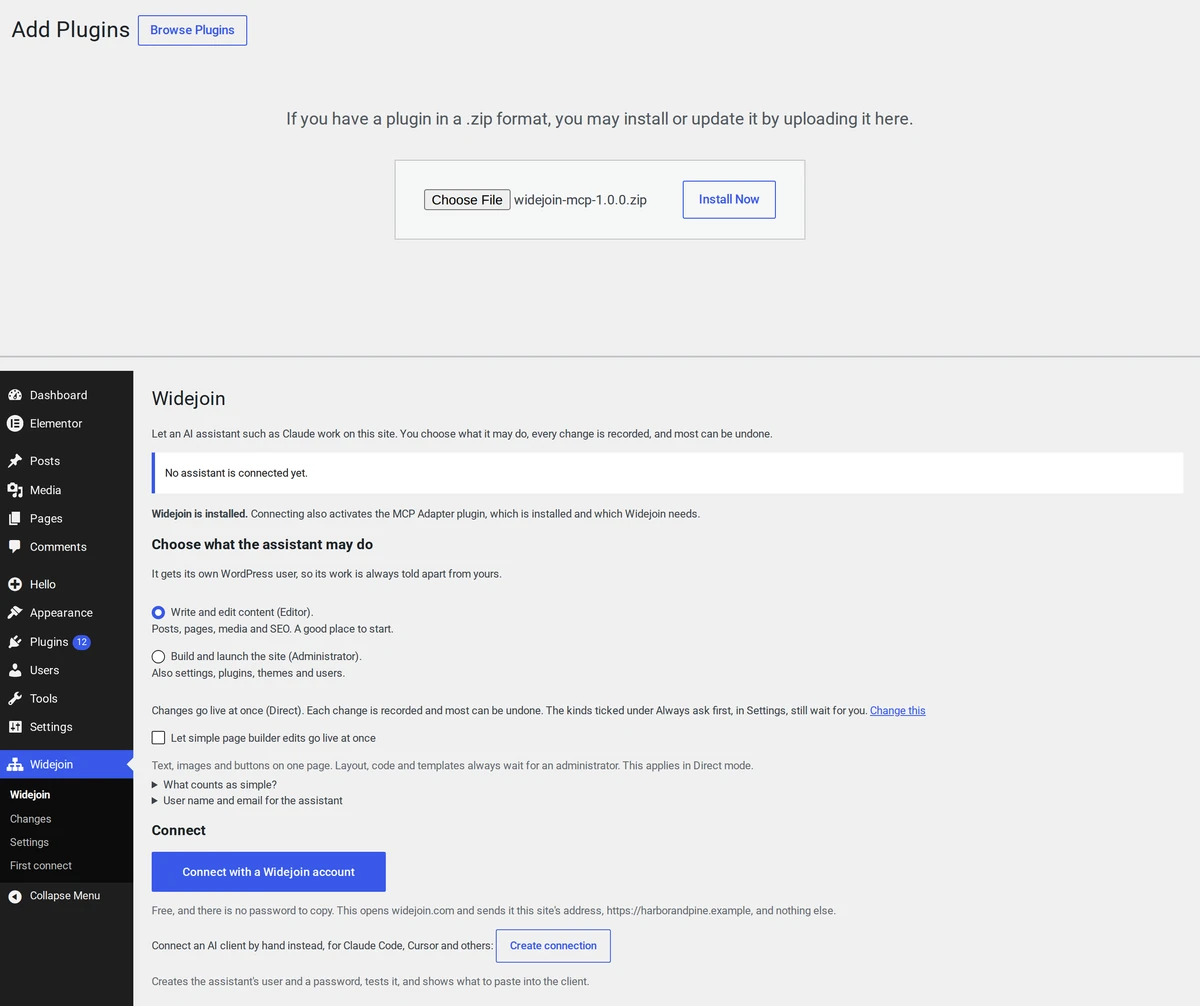
Upload the ZIP. Go to Plugins > Add New > Upload Plugin, choose the Widejoin ZIP and click Install Now.
Activate it. Click Activate. WordPress opens the Widejoin screen once, straight after activation, and Widejoin appears in the admin menu with Changes and Settings under it, and First connect and Pro for an administrator. Until an assistant is connected, that screen is the setup. The plugin's screens call your AI agent "the assistant". If you activate several plugins at once or from WP-CLI, nothing opens, so pick Widejoin in the menu.
Create the connection. On the Widejoin screen in wp-admin, choose what the assistant may do. "Write and edit content (Editor)" is chosen for you, and "Build and launch the site (Administrator)" is the other choice. Then click "Create connection". That one click installs or activates the MCP Adapter 0.7.x from WordPress.org, creates the assistant's WordPress user and a password, tests it, and shows the endpoint, user name, password and header, each with a Copy button. The password is shown once, in groups of four, and Copy takes it without the spaces. If a step is refused, as on a host that blocks plugin installs, nothing is created and the message says how to add the Adapter by hand. Until the Adapter is active, Widejoin serves no tools, and troubleshooting lists each cause of an empty tool list.
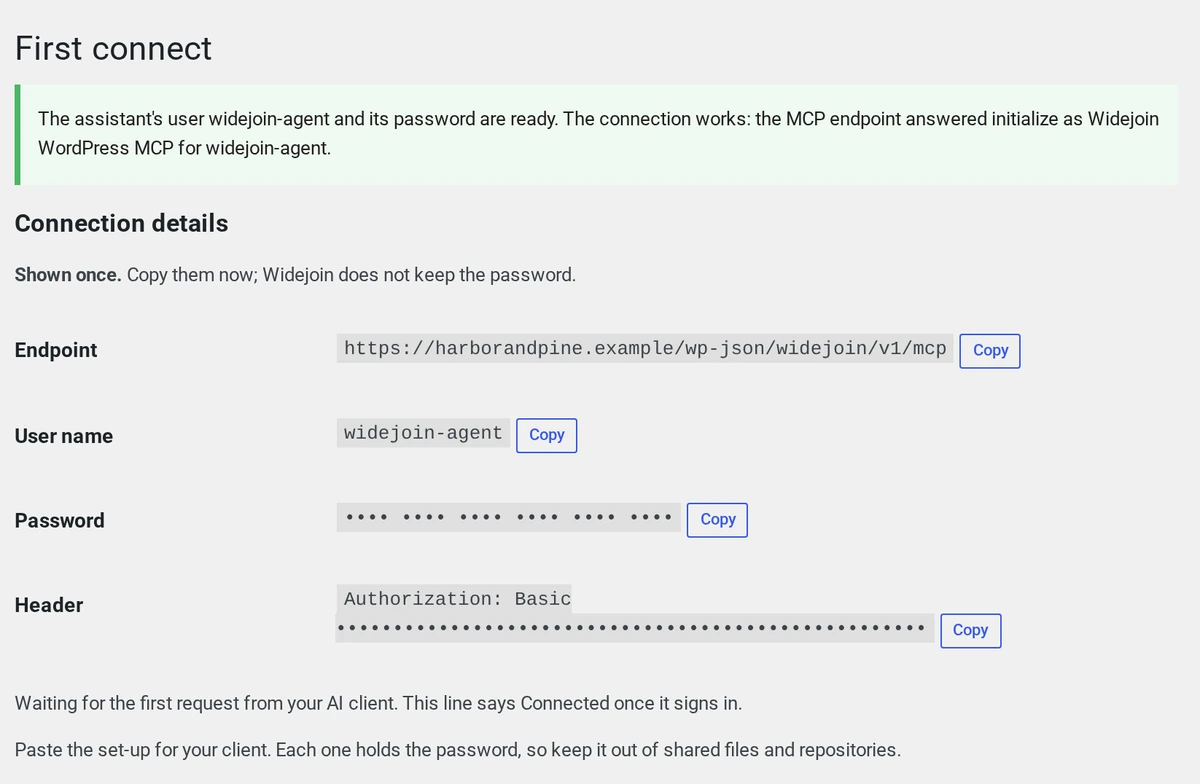
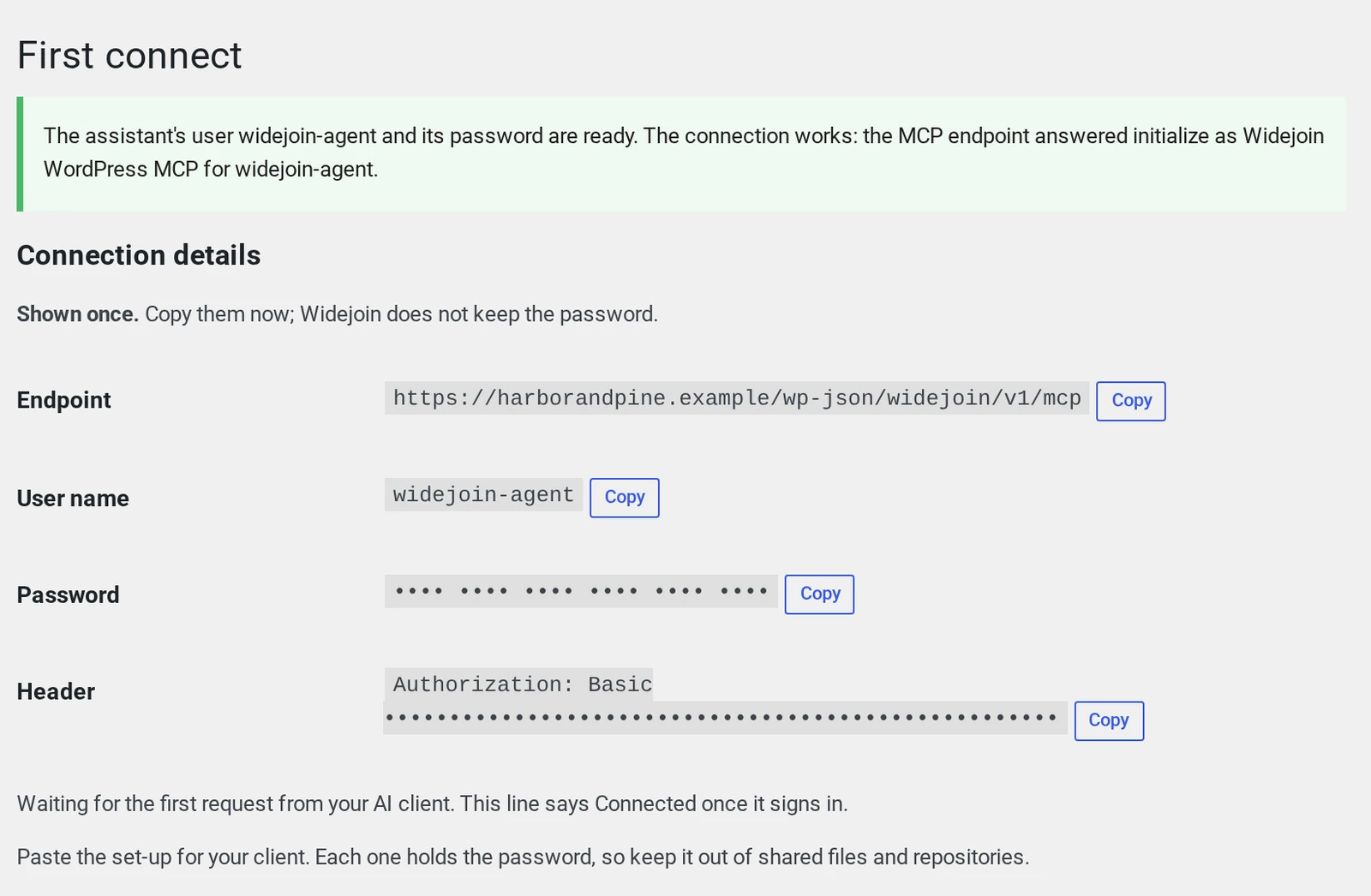
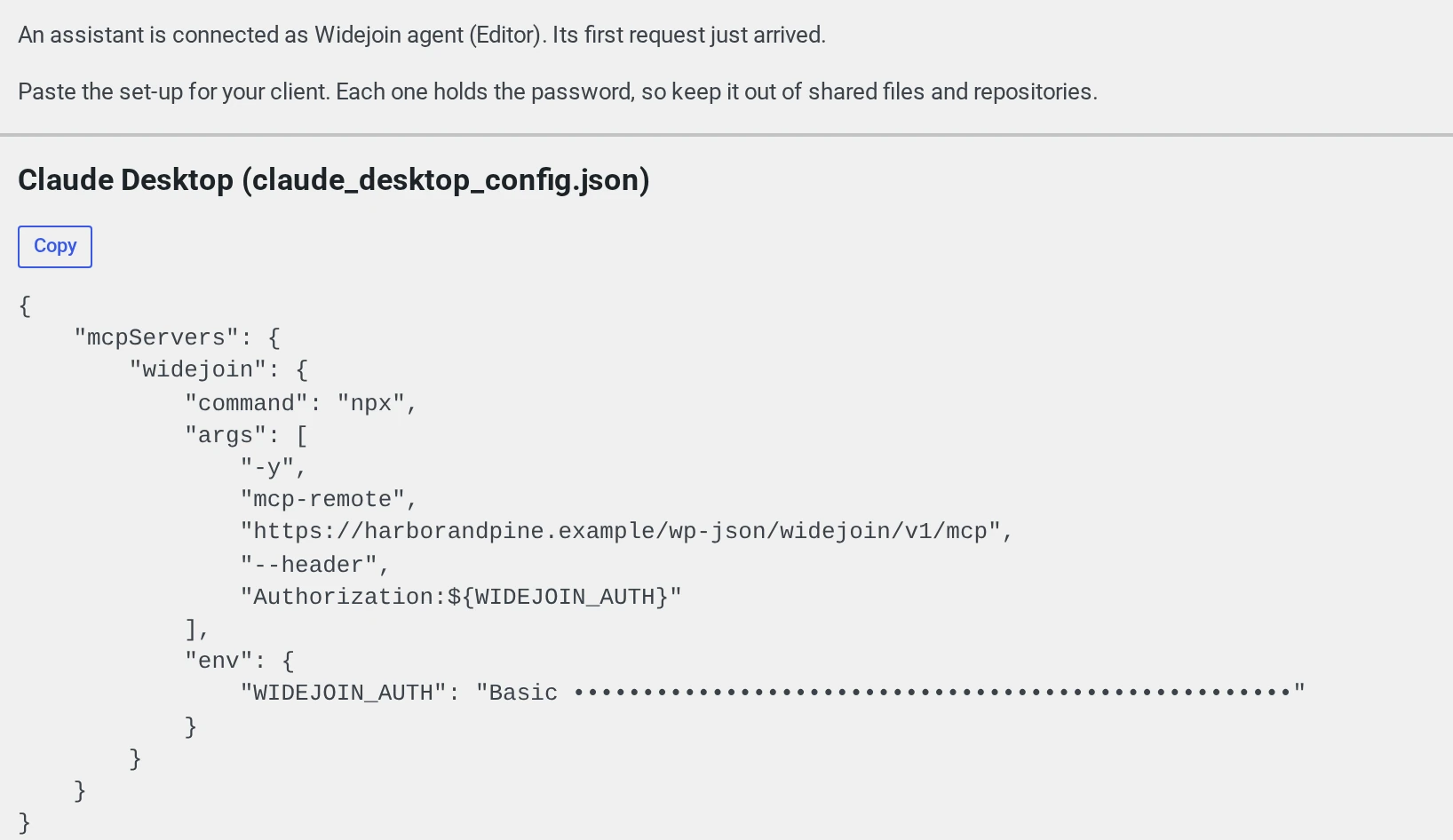
What Create connection shows: the self-test passed and the details to copy. The password is hidden in this shot; yours shows once. Connect your AI client. Under the details, the screen shows the set-up for each client. Copy yours and paste it into the client. The status line reads "Waiting for the first request from your AI client" until the client's first real request arrives, and "An assistant is connected" after it. To use the hosted server instead, click "Connect with a Widejoin account". It opens widejoin.com/sign-up with your site's address and creates nothing on the site. Connect your AI client covers both routes.
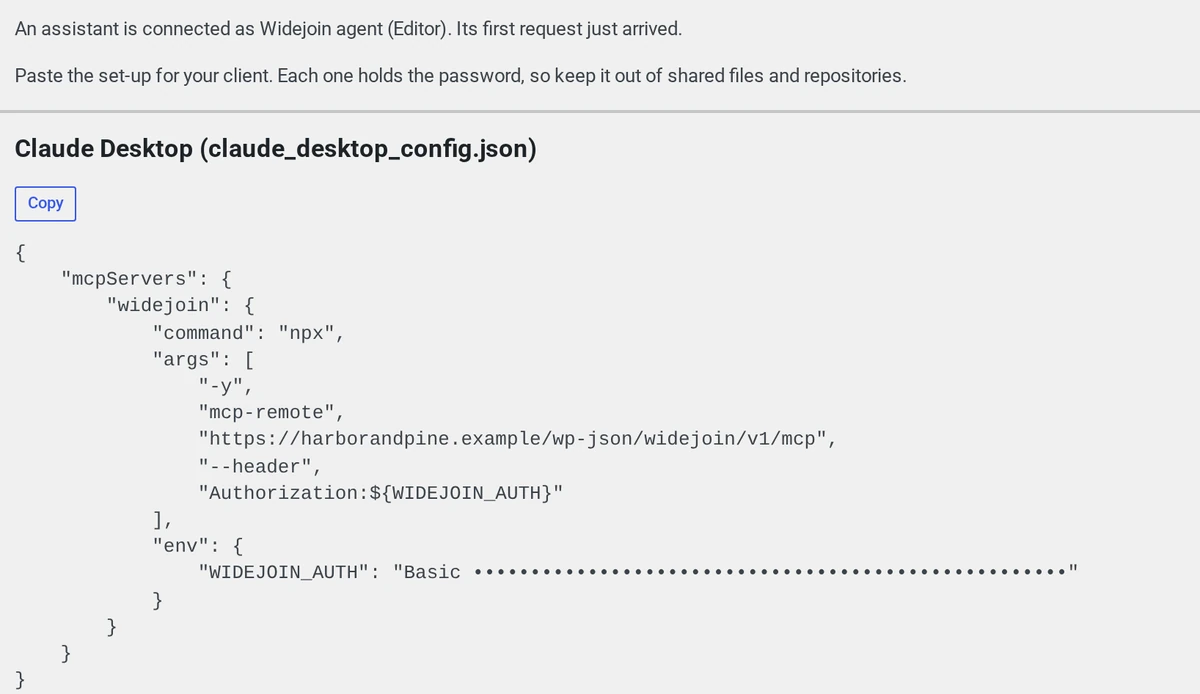
The status line changes once the client's first request arrives; each client's set-up sits below it.
How will changes apply after I install?
A new install starts in Direct: the agent's changes apply at once as its own WordPress user, each one recorded and most of them restorable, and deletes, plugin installs, users, form mail and payment settings still wait for a person by default. An administrator can switch the site to Review first on Settings, General, under "When changes go live", so every change waits on the Changes screen. Review first and the review inbox has the steps.
What happens on WordPress 6.4 to 6.8?
This version needs WordPress 6.9 or later, so WordPress does not offer it to sites on 6.4 to 6.8. Those sites stay on Widejoin 0.6.1 or earlier, which carries its own copy of the Adapter and runs in update-only mode. That build serves a smaller MCP endpoint at the same address with the update tools only: site information, connection diagnostics, the maintenance inventory, the core and plugin update preflights, reviewed updates, the data updater and change status. wp-admin says it is in update-only mode. To get every tool, upgrade WordPress to 6.9, install the MCP Adapter, then update Widejoin.
We proved this end to end on a throwaway WordPress 6.7 site: the older build installed and served only the update tools.
How do I update Widejoin?
Upload the new ZIP the same way; WordPress replaces the old version. Upgrades keep your data: on our lab, upgrading from 0.4.0 and from 0.5.0 and back again kept every stored change and audit row.
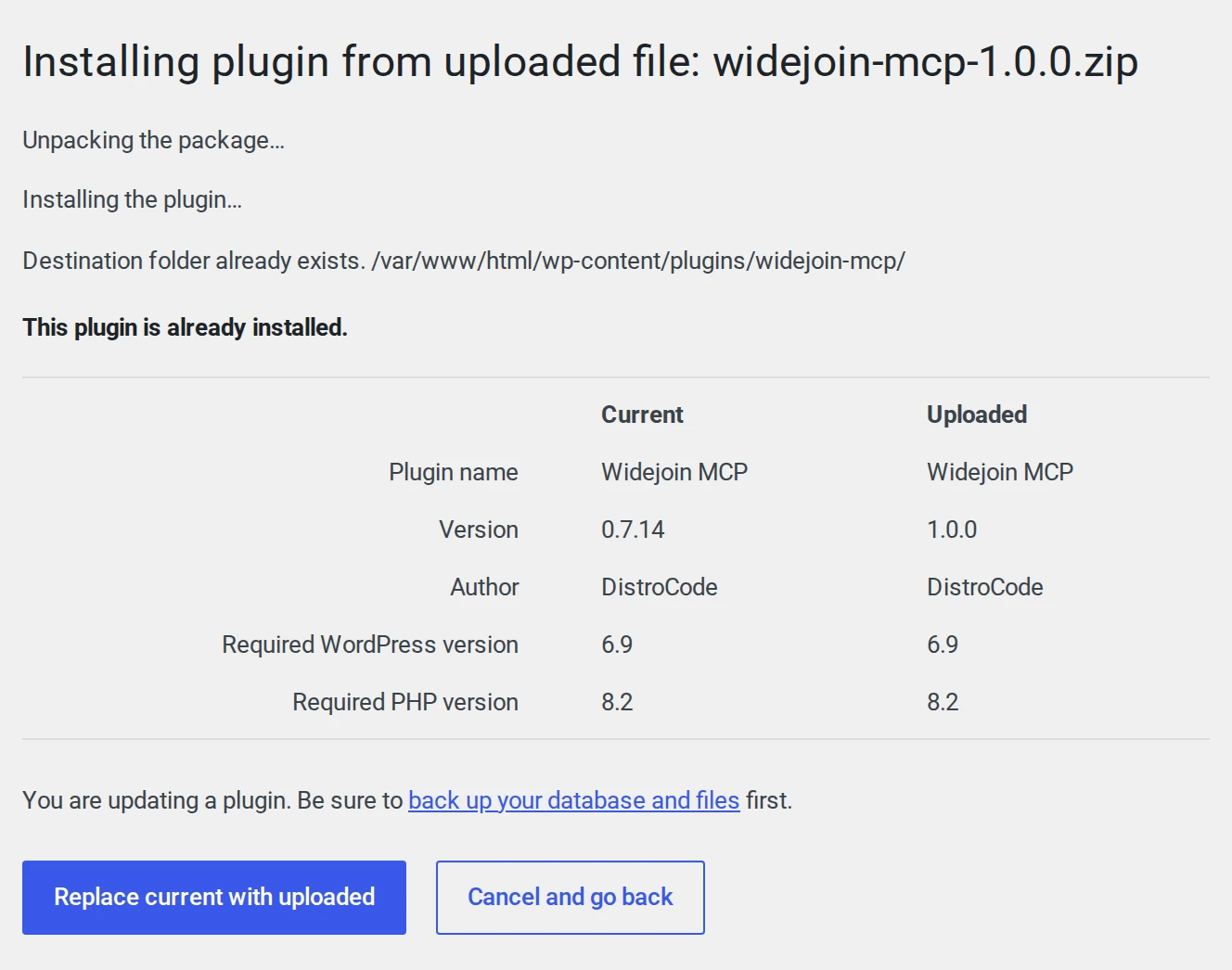
Updating does not change how your site applies changes. A site that ran Widejoin 0.7.0 or earlier starts in Review first, as do sites with an agent account or any change history. Widejoin writes that once, on the first request after the upgrade, and an administrator can switch to Direct afterwards.
Updating from 0.6.1 or earlier? Install and activate the MCP Adapter plugin 0.7.x first. Without it Widejoin serves no tools after the update.
What limits should I know about?
Requests over 2 MB are refused. A pending change can be approved for 3 days by default (an administrator can set 1 to 14 days), change snapshots are kept for 30 days, and audit rows for 90 days when WP-Cron runs.
How do I remove Widejoin?
Delete the plugin in wp-admin. That removes its tables and settings, unless an administrator chose to keep the data. Before you delete it, open First connect under Widejoin and click "Disconnect and remove the assistant's user". That revokes the assistant's passwords and deletes its user, or turns the user off when it owns content. A user and password you made by hand are yours to remove under Users.
Next: connect your AI client, how a change works and undo an applied change.
Questions
Is Widejoin on WordPress.org?
Not yet. Download the ZIP from the download page (/download/), no sign-up needed. A WordPress.org listing will follow.
Can I install it on WordPress 6.8?
No. This version needs WordPress 6.9 or later. Sites on 6.4 to 6.8 stay on Widejoin 0.6.1 or earlier, which carries its own copy of the Adapter and serves the update tools only. Upgrade WordPress to 6.9 and install the MCP Adapter to get this version.
Does it work on Multisite?
No. Multisite is out of scope.
Will updating the plugin lose my pending changes?
No. Upgrades keep every stored change and audit row; we tested the upgrade from 0.4.0 and from 0.5.0 and back again.
Does updating switch my site to Direct?
No. A site that ran Widejoin 0.7.0 or earlier starts in Review first and stays there until an administrator changes it. Only a new install starts in Direct.
Point your agent at a client site today.
14 days of Pro on up to 10 sites. No card. Connect your client and ask for a page in the builder you already use.