Review first and the review inbox
Review first is the per-site setting that makes every change your AI agent prepares wait in wp-admin until a person approves or declines it. A new install applies most changes at once instead, so this page covers how to switch a site over, what still waits in Direct, and how to approve one change or several.
Free to start. No credit card.
On this page
- What is Review first?
- How do I switch a site to Review first?
- Can a host lock a site in Review first?
- Which sites start in Review first?
- What waits in Review first?
- What still waits in Direct?
- Where do changes wait?
- What does a review page show?
- How do I approve a change?
- What does approval check?
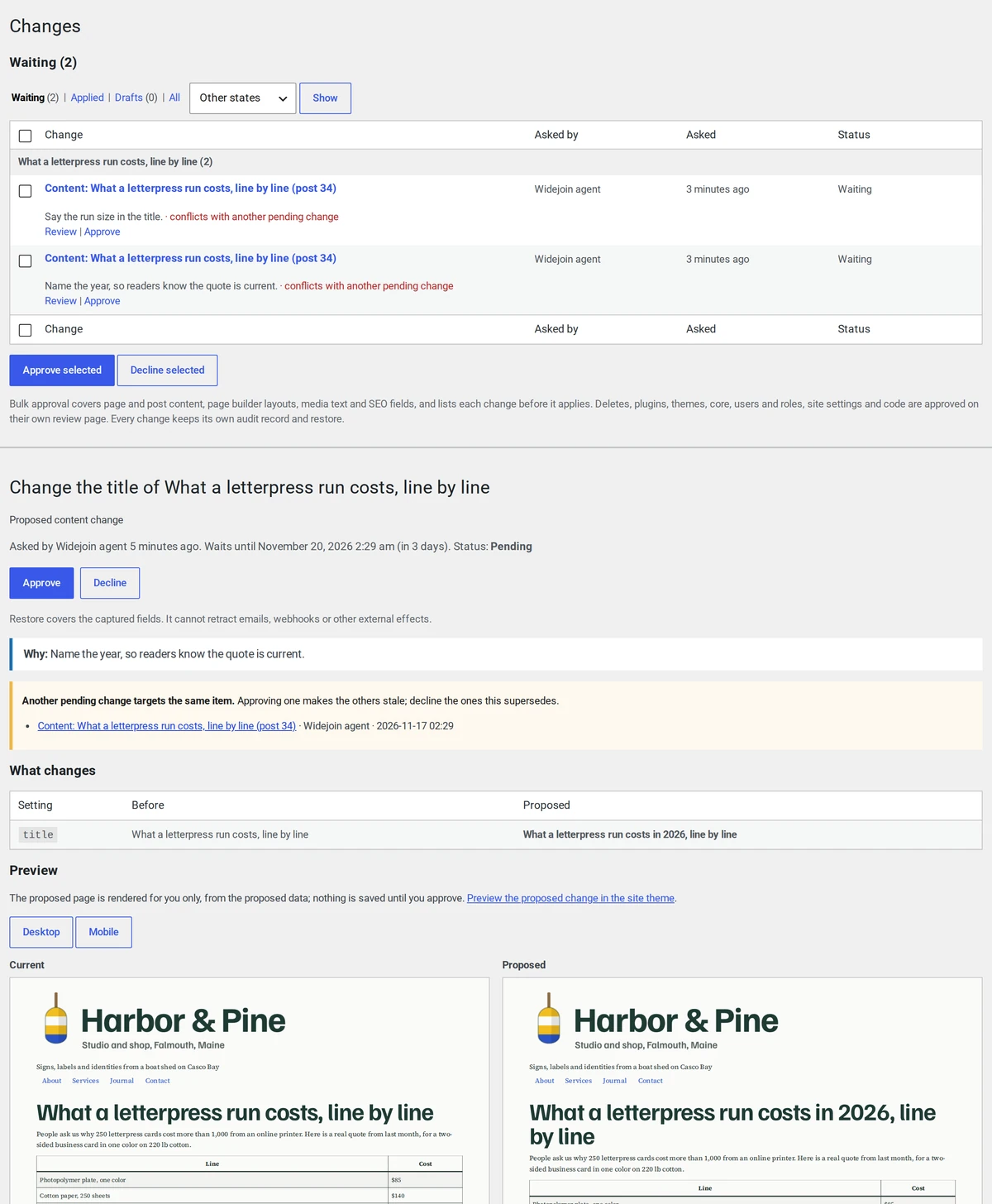
- What if two changes edit the same part of a page?
- Can I approve several changes at once?
- How long does a change wait?
- Why does the inbox look the way it does?
- Questions
What is Review first?
One of the two ways a site can apply changes. In Direct, a change a tool makes applies in the same request, as the calling WordPress user. In Review first, every change waits on the Changes screen in wp-admin until a person approves or declines it. The wp-admin setting reads "After I approve them (Review first)".
Both modes run the same checks, keep the same change record and audit row, and offer the same restore. The only difference is who presses the button.
How do I switch a site to Review first?
Sign in to wp-admin as an administrator. Only an administrator can change the mode, and only from a signed-in browser session.
Open Settings. In the Widejoin menu, open Settings. The General tab starts with "When changes go live".
Choose Review first. Pick "After I approve them (Review first)". The other choice is "At once (Direct)".
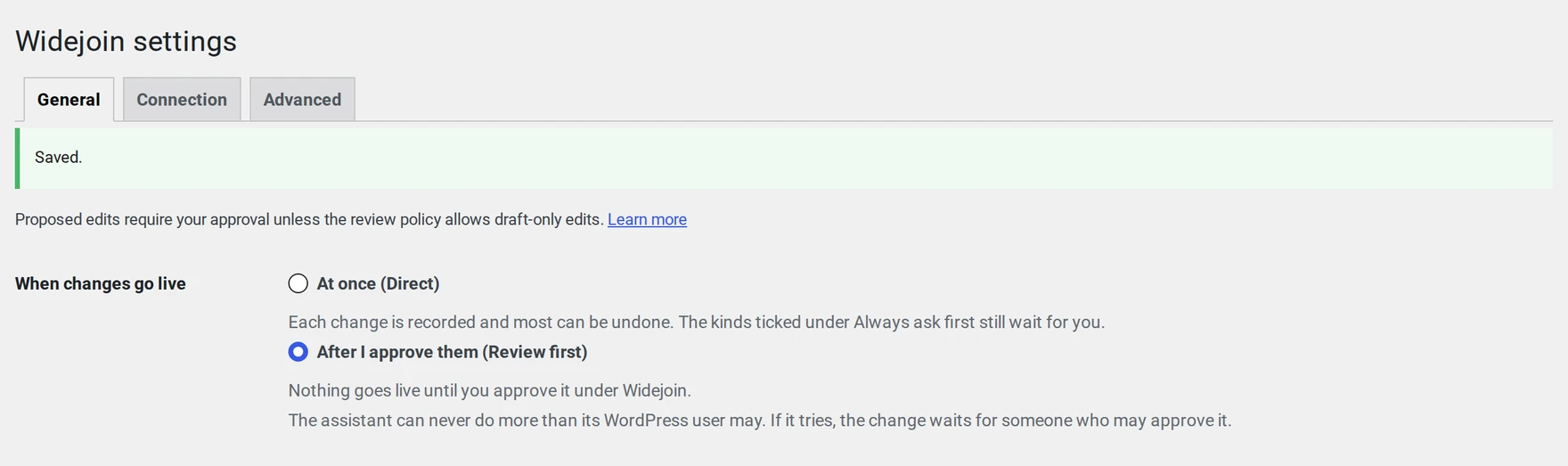
Save. Click "Save changes". The tab answers "Saved." and keeps your choice selected.
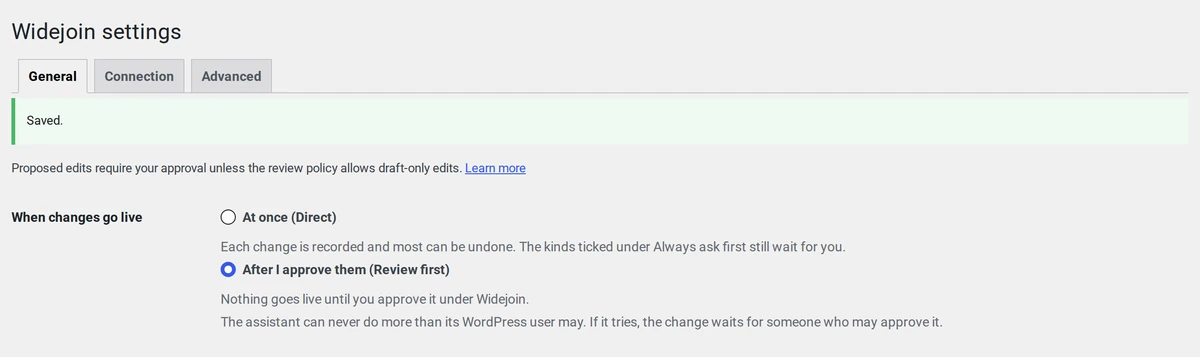
Settings, General, saved with Review first chosen.
An MCP tool, an Application Password or another plugin's sign-in cannot change the mode. The agent can read it in site-info, under site_mode, but never set it.
Can a host lock a site in Review first?
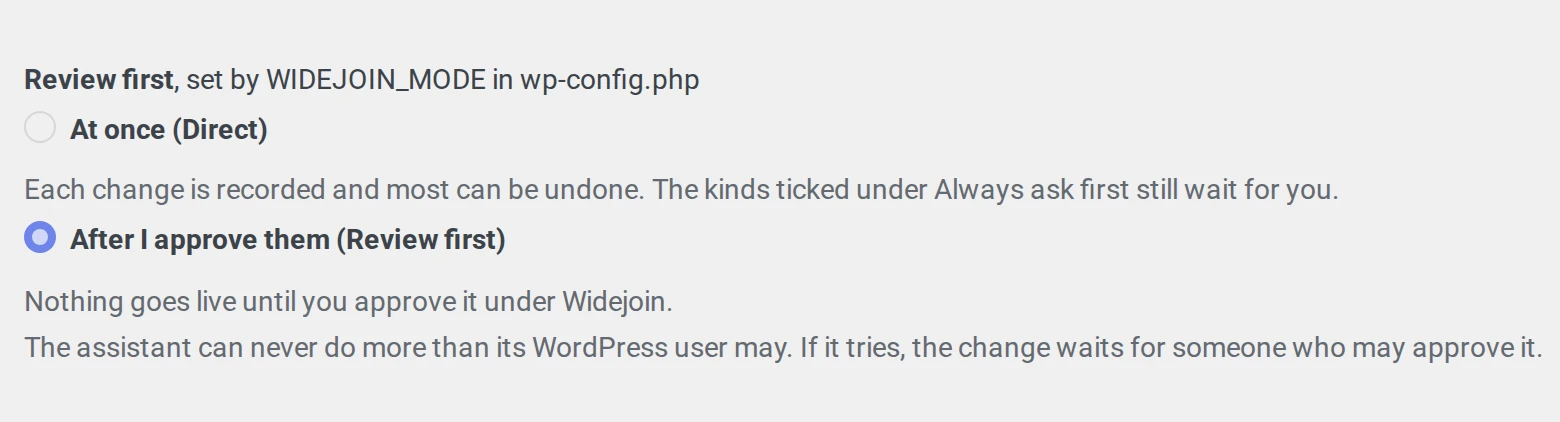
Yes. Add define( 'WIDEJOIN_MODE', 'review' ); to wp-config.php. Any value other than 'direct' pins Review first, so a typo never opens a site. While the mode is pinned, the two radio buttons are greyed out and the tab says the mode is set by WIDEJOIN_MODE in wp-config.php. The "Always ask first" list and the daily limit can still be saved.
Which sites start in Review first?
A new install starts in Direct. A site starts in Review first when it ran Widejoin 0.7.0 or earlier, or has a First connect agent account, a user with a password limited to Widejoin or any change history. So no existing site switches mode on its own. Widejoin writes this once, on the first request after the install or upgrade. A site with no stored mode is read as Review first.
What waits in Review first?
Every change. A new title, a layout edit, a publish, a price, a plugin update and a settings change all wait on the Changes screen, under Waiting. Reads run at once, and a new draft the agent creates is saved unpublished, so nothing reaches visitors until a person approves.
The agent cannot approve its own work. MCP tools have no approve action, and approval happens at the change's review_url in wp-admin.
Two options let some changes through without waiting, and both are off by default:
- Draft edits. An administrator can turn on "Apply edits to unpublished drafts without review" under Settings, Advanced, in the Unpublished drafts section. Then an edit that keeps a draft unpublished and unscheduled applies at once and can still be restored. Publishing, live content, scheduling, trash and every other kind of change still wait.
- Build mode. For a site that is still being built. Build changes apply at once, each with its own record, audit row and restore. Deletes, publishing, users and roles, code, plugin and theme updates, uploaded packages and core updates still wait, and plugin and theme installs wait unless they are on the install allowlist. Build always ends: 7 days by default, 1 to 14 days, and at most 3 days on a site that reports itself as production, after you tick "This site is not live yet" and type the host name. Its daily limit is 300 live changes by default, settable from 50 to 1,000. Build is a Review first option only, so its panel is hidden in Direct.
What still waits in Direct?
Less, but not nothing. These wait for a person in Direct too, at review_url with a queued_because code that says why:
- Changes the agent's user may not make (
needs_capability). They wait for someone whose role may. If nobody on the site may make it, the change is closed instead (nobody_can_approve). - The "Always ask first" list (
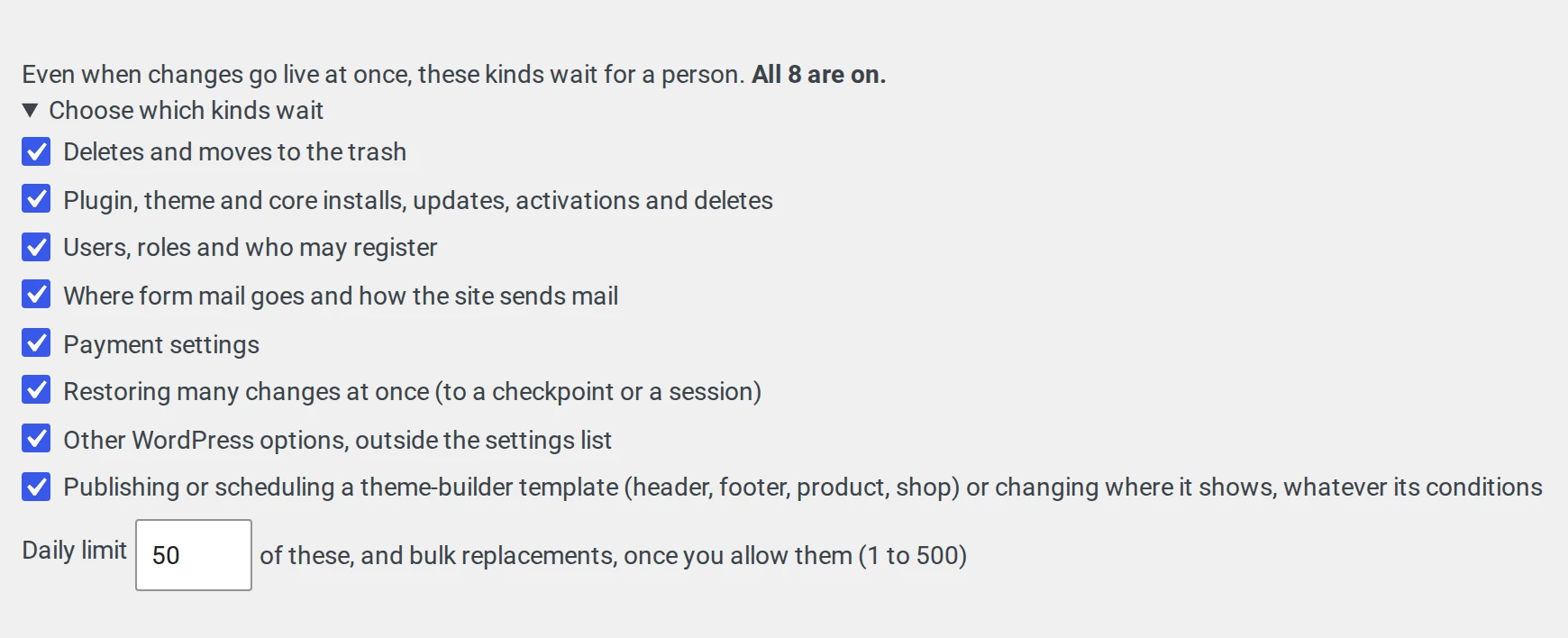
ask_before), on Settings, General. All eight items are on until an administrator turns one off: deletes and moves to the trash; plugin, theme and core installs, updates, activations and deletes; users, roles and who may register; where form mail goes and how the site sends mail; payment settings; other WordPress options, outside the settings list; restoring many changes at once, to a checkpoint or a session; publishing or scheduling a theme-builder template (header, footer, product, shop) or changing where it shows. - The daily limit (
daily_cap). Once an administrator allows ask-before kinds, those changes and bulk replacements are capped per 24 hours, 50 by default and settable from 1 to 500. The count comes from the audit rows, not from a counter. - Kinds that always wait: update plans, the Build install allowlist, another plugin's ability, a role that adds
unfiltered_html,promote_usersormanage_options, protected options, and pages frozen in a pending launch. A WordPress core update and a plugin data upgrade wait while the plugin, theme and core item is on, and otherwise run as a background job (long_operation), as a site import does. - Content and code checks. Content that WordPress's filter (
wp_kses_post) would change waits for a person to check it (content_filtered). Code (HTML, script, custom CSS) from a user withoutunfiltered_htmlwaits for a user who has it (needs_unfiltered_html). A post open in another user's editor waits until it is free (post_locked). - Page builder layouts (
needs_unfiltered_html). An edit to an Elementor, Divi, Bricks, Beaver Builder, WPBakery or Avada layout waits for a user withunfiltered_htmlwhen it adds or changes code, attributes, dynamic data, conditions or loops. It also waits when it moves a code element, or when the option "Let simple page builder edits go live at once" is off. A SeedProd plain edit applies whether or not the option is on, and a SeedProd block off its plain list waits. From a user without it, templates, headers, footers and globals always wait, even a plain edit. On a page that holds code an administrator added, a plain edit waits in Elementor, Beaver Builder, Divi and Divi 5. WPBakery and Avada refuse it when WordPress's content filter would remove that code, and a WPBakery Raw HTML block is kept. Bricks and SeedProd keep that code when they save, so the plain edit applies there. The default agent First connect makes lacksunfiltered_htmluntil an administrator ticks Allow the agent to add code. Block editor and Meta Box edits apply at once. - Anything the agent sends with
review: true(review_requested).
Approving, declining and undoing are free on every plan. Several kinds in this list are made by Pro tools: update plans, core updates, plugin data upgrades, the site import, and layout writes in Divi, Bricks, Beaver Builder, WPBakery, Avada and SeedProd. Widejoin pricing lists what is free and what is Pro.
On our box lab on 23 October 2026, the same six page Gutenberg build took 38 tool calls in both modes. In Direct it needed 3 approvals, two from the ask-before list and the install allowlist, an administrator's setting: the Contact Form 7 activation, the contact form's mail and the allowlist. In Review first with Build on it needed 4 and one admin setting.
Where do changes wait?
On the Changes screen, under Widejoin in the wp-admin menu. It opens on Waiting. The admin menu and the admin bar show how many changes are waiting, and the Widejoin screen has an "Open Changes" button. Each change has a readable title, such as "Content: About us (page 745)", and a one-line reason of up to 280 characters that the agent writes when it makes the change.
Administrators also get one mail when changes wait, at most one an hour, with a link to Changes. To stop it, untick "Mail administrators when changes wait" on Settings, General.
Changes are grouped by what they touch: a page's title, the Media Library, plugins and themes, or categories and tags. The views are Waiting, Applied, Drafts and All, and the "Other states" menu lists declined, restored, withdrawn, superseded and failed changes. So the changes Direct applied are listed here too, under Applied. A waiting row has Review and Approve links. An applied row has Review and Undo, and Undo opens the change's page, where "Undo this change" does it. Nothing is undone from the list.
What does a review page show?
Its title says what the change does, and the line under it says who asked, how long ago and until when it waits. Approve and Decline sit at the top. Below them: the page as a visitor would see it, on desktop and on a phone width, and a table of what changes: one row per element, with the setting, the current value and the new value. The raw data sits under Technical details. A change to a library template also names up to 20 pages that embed it, so you know where it will appear.
How do I approve a change?
- Open the change. Open Changes in the Widejoin menu and click its title under Waiting.
- Read the reason. The "Why" line at the top says what the agent was asked to do.
- Check the preview and the table. Compare the current and new page on desktop and phone, and read each changed setting.
- Approve or decline. Click Approve to apply it, or Decline to close it. Both buttons are at the top of the page. A waiting change does not touch the site until you approve it.
What does approval check?
Three things: that you can edit every post the change touches, that the request carries a valid nonce, and that nothing changed since the review page loaded. If someone edited the page in between, approval is refused and the agent makes the change again against the current page.
Some changes need more. A change to site options needs an administrator, and Elementor custom code needs the unfiltered_html capability to approve.
What if two changes edit the same part of a page?
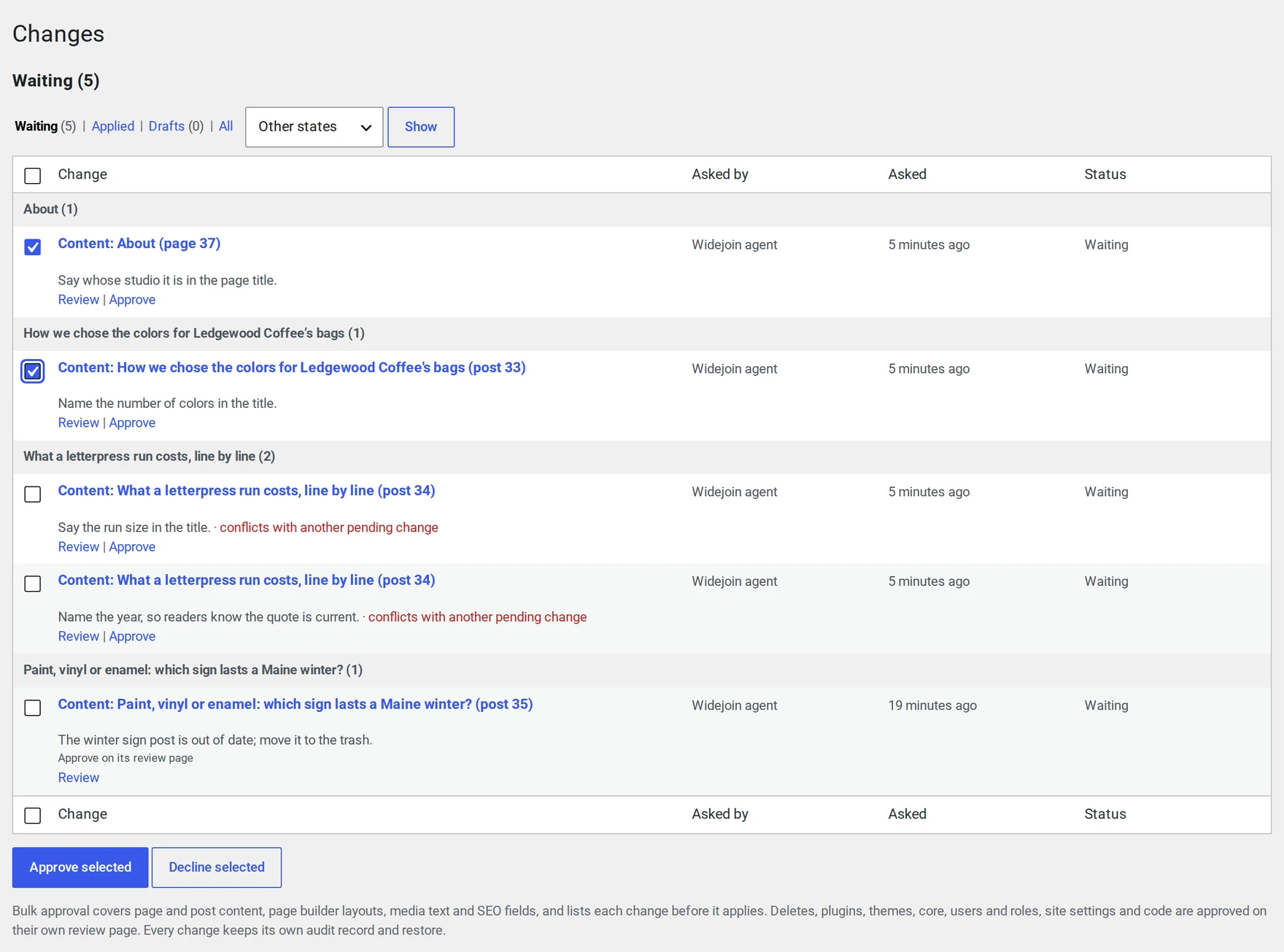
The Changes screen marks each of them "conflicts with another pending change", and each review page links to the other one, so you can pick which to approve. A layout change and an SEO change on the same page do not conflict. Plugin and theme operations are grouped together and never flagged.
Can I approve several changes at once?
Yes for media, SEO, page and post content and builder layouts, on any site, and for more Build kinds on a site that is not in production. Deletes, users and roles, code and CSS, and core and plugin updates are approved one by one. Tick the rows and use "Approve selected" or "Decline selected". Any change can be declined in bulk, and the screen tells you how many were handled and how many could not be. Each change in a bulk approval still runs its own checks and keeps its own audit record and restore. A media batch, such as bulk alt text for up to 50 images, is one change, so it takes one tick.
How long does a change wait?
Three days by default. An administrator can set 1 to 14 days under "Changes wait for" on Settings, General, and the new time applies to changes asked for after the save. Each waiting change's page says until when it waits. After that the change expires and the agent makes it again. The agent can also withdraw a change it made by mistake, and a withdrawn change can no longer be approved.
Why does the inbox look the way it does?
Because of our own site. On distrocode.com, 24 pending changes once sat at the bottom of a 13,000 pixel admin page as bare IDs like "extension 6195", and 12 homepage edits showed up as 34 rows. We moved the inbox to the top, grouped the rows and added the reason line. In 0.7.13 the list left the plugin's home page for a screen of its own, Changes, so the count in the menu opens the list itself.
Next: undo a change and how a change works.
Questions
Can my AI agent approve its own changes?
No. In Review first, a person approves in wp-admin, in a browser, with the right capabilities; the agent can read a change's status but not approve it. In Direct, the agent's changes apply as its own WordPress user, so it can do nothing that user could not do in wp-admin.
What does "out of date" mean on a pending change?
The page changed after the agent made the change, so approval would be refused. If you approve it anyway, the review page says Not applied and that nothing was changed. Decline it, and the agent makes it again against the current page.
Who can approve a change?
Anyone who can edit every post it touches. Site option changes need an administrator, and Elementor custom code needs the unfiltered_html capability.
Where do declined changes go?
They stay on the Changes screen. Choose Declined in the Other states menu to list them. Nothing on the site changes.
Is Review first the default?
No. A new install starts in Direct. Sites that ran Widejoin 0.7.0 or earlier, or already have an agent account or change history, start in Review first, and an administrator can switch either way.
Point your agent at a client site today.
14 days of Pro on up to 10 sites. No card. Connect your client and ask for a page in the builder you already use.