Bulk alt text in WordPress with an AI agent: up to 50 images in one change
WordPress core has no bulk alt text action, so through Widejoin your AI agent does it: it lists the images that have no alt text, writes a description for each and sends up to 50 as one recorded change. You check that change on a thumbnail grid, keep it, or undo the whole batch at once. The batch tool is part of Widejoin Pro.
Checked against Widejoin 1.0.2.
Key points
- WordPress's Media Library has one bulk action, Delete Permanently. Alt text is edited per image.
widejoin-list-media-missing-alt(free) finds images without alt text on one page or in the whole library.widejoin-prepare-media-batch(Pro) sends text for up to 50 of them as one change.- On a new install the batch applies in the same call, and one
widejoin-restore-changecall puts every image back. - With
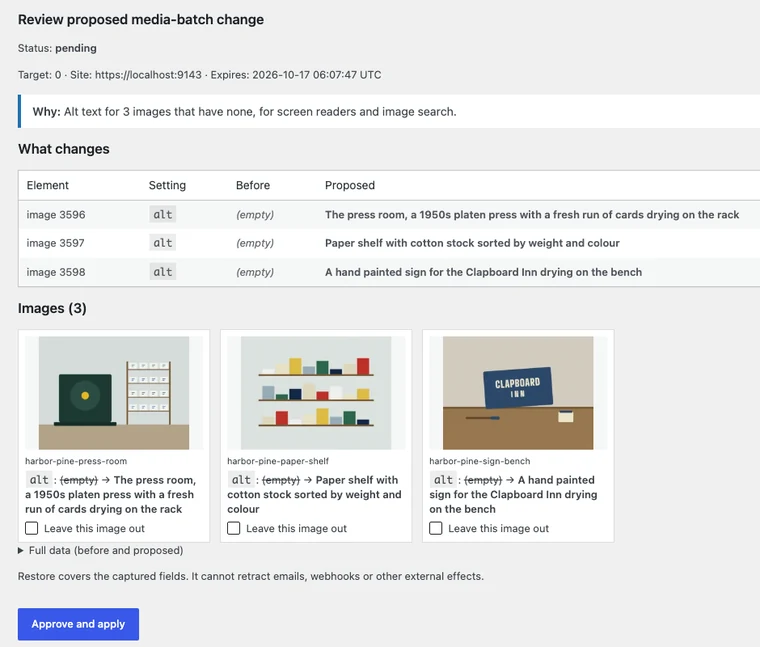
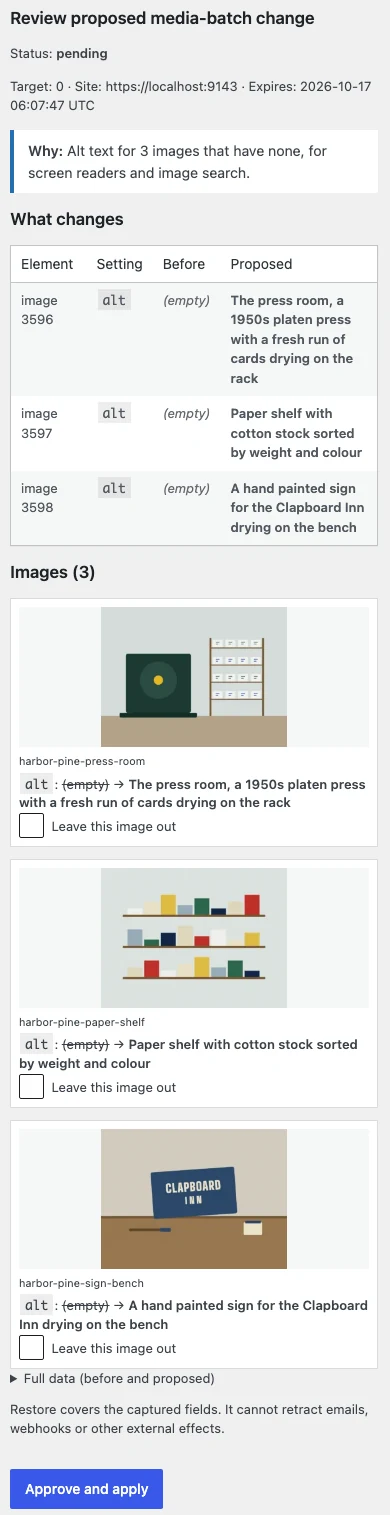
review: true, or on a site set to Review first, nothing is saved until a person approves a grid of thumbnails with the current and proposed text, and a "Leave this image out" box under each. - It does not judge whether the text is good. That check is yours, on the grid or afterwards.
14 days of Pro on up to 10 sites. No card.
On this page
- Why does missing alt text pile up?
- How do I add bulk alt text in WordPress without an AI assistant?
- How does an AI assistant do bulk alt text with Widejoin?
- What does the review screen show?
- What did we see when we tested it?
- How should an AI assistant write alt text?
- What can this not do?
- How do I try bulk alt text on my own site?
- Questions
Why does missing alt text pile up?
Because adding it is a per-image chore that nobody schedules. In the WebAIM Million report from February 2026, 53.1% of home pages had images with missing alternative text, and the average home page had 10.8 such images (WebAIM Million 2026, read 18 November 2026).
Our own site was no better. In our test run on distrocode.com on 27 September 2026, an agent set out to fix the home page's missing alt text. It found 13 images. Because the tool took one image per call, the job took 13 read-media calls and 13 prepare-media calls, and left 13 separate review pages to open and approve. Each page was correct. There were just a lot of them.
That run is why we built a batch tool. How a WordPress AI agent changes your site explains how a change like this applies and how it is undone.
How do I add bulk alt text in WordPress without an AI assistant?
In core, one image at a time. WordPress's Media Library documentation says the only bulk action there is Delete Permanently, and that alt text is a field on each image's Attachment Details panel (WordPress documentation, Media Library screen, read 18 November 2026).
Two other routes exist. The official AI plugin from WordPress.org has an alt text experiment that includes bulk generation from the Media Library. You switch it on under Settings, AI, and it runs on your own AI provider key (AI plugin on WordPress.org, version 1.5.0, read 18 November 2026).
Plugins such as AltTextLab generate alt text on upload or in bulk for credits; AltTextLab's free plan was 25 credits a month when we read its listing on 18 November 2026.
If you have shell access and write the text yourself, WP-CLI sets it one image at a time. wp post meta update <id> _wp_attachment_image_alt "Description" updates the field, where <id> is the attachment's ID (WP-CLI docs, read 18 November 2026). _wp_attachment_image_alt is the meta key WordPress stores alt text under, and the one Widejoin writes. A short loop over a list of IDs and sentences makes that a script. Then you own the script, the list and the mistakes.
How does an AI assistant do bulk alt text with Widejoin?
In four steps, each one a tool your AI client calls over MCP.
- Find the images.
widejoin-list-media-missing-altreturns images without alt text, each with a thumbnail, file name and fingerprint. Pass apost_idand it reads the images used on that page, in Gutenberg, Elementor, Bricks and Beaver Builder content. Leavepost_idout and it reads the Media Library. It returns up to 50 per call, and it is in the free plugin. - Write the text. The assistant writes the alt text for each image. This is the step that needs a client that can look at the image, which we come back to below.
- Send one change.
widejoin-prepare-media-batchtakes up to 50 items, each with an attachment ID, the fingerprint from step 1 and the text. It creates one change, which can also carry captions, titles and descriptions. In Direct it applies in the same call, and the answer gives the change's id and its page in wp-admin. - Check it. To see the grid before anything is saved, have the assistant pass
review: true, or set the site to Review first. Then you open the change in wp-admin and approve it, and only then is anything saved to the images.
Setting only_if_empty makes the change skip any field that already has text, and the response lists what it skipped. If every field was already filled, no change is made at all.
What does the review screen show?
A grid, whenever the batch waits for a person. Each image is a thumbnail with its title, and for every field that changes, the old value struck through beside the new one. An empty alt shows as "(empty)". Under each image is a checkbox labelled "Leave this image out".
Tick it and that image keeps its current text when you approve, and the exclusion is written to the audit log. The button is Approve; on an applied batch it becomes Undo this change.
On the Changes screen the batch is titled "Media text: N images", so a batch of 13 reads as one line, not 13. Media text is among the kinds you can tick and approve together with Approve selected, which lists each change before it applies.
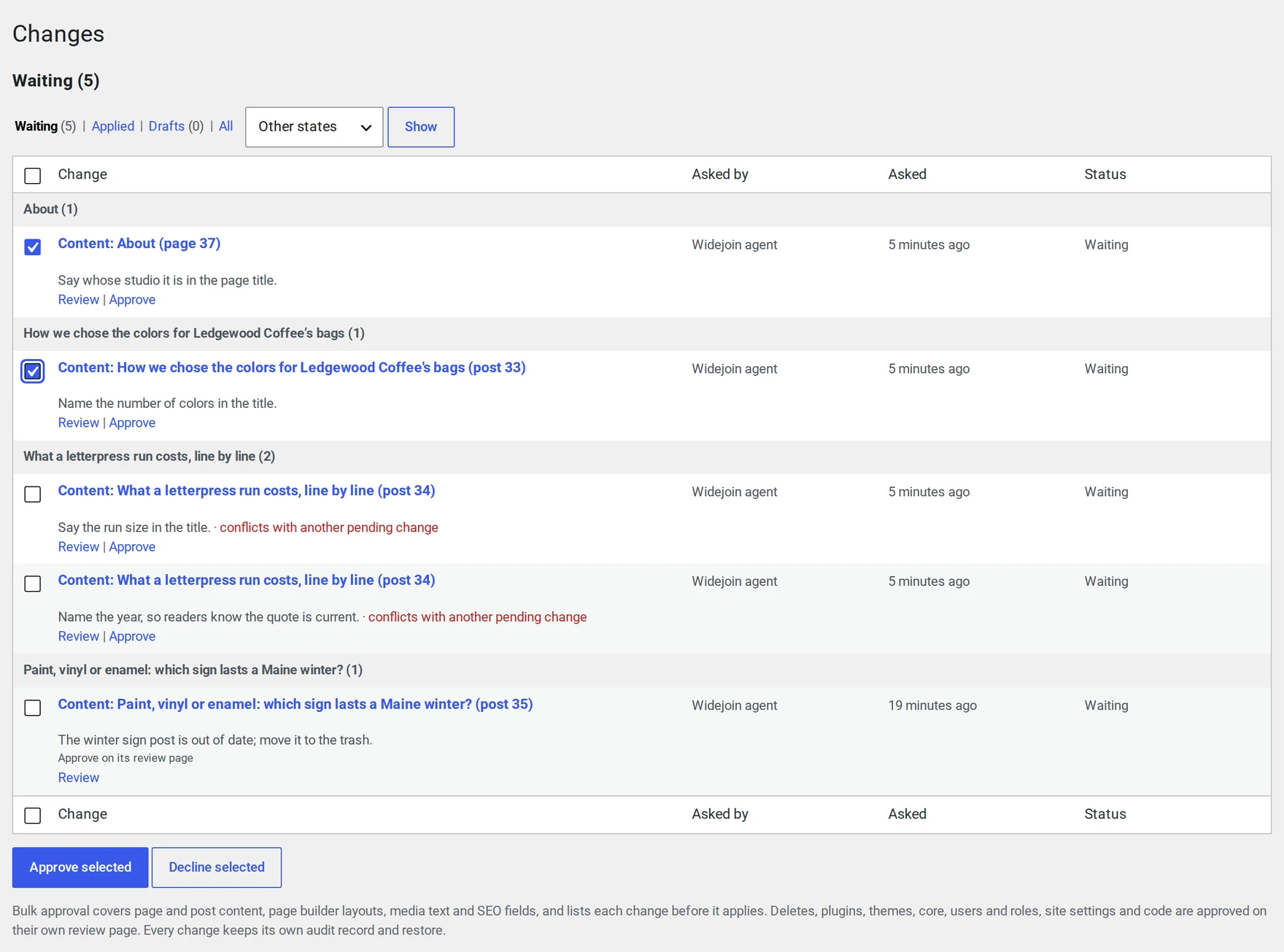
The review inbox guide covers the rest of that screen.
What did we see when we tested it?
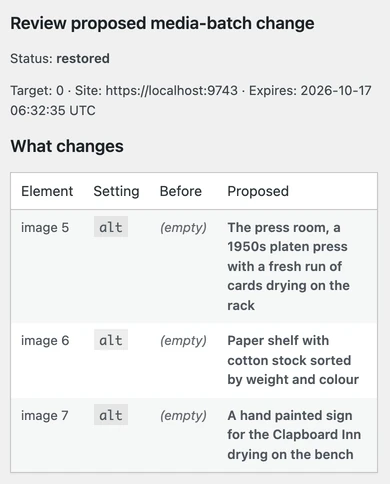
The browser test for this feature uploads three images, proposes alt text for all three in one batch and ticks "Leave this image out" on the second. After Approve, the first and third images carried the new text and the second still had an empty alt. After Undo this change, all three were empty again.
On the demo site we use for screenshots, Harbor & Pine Studio (a demo client site), the demo seed proposes alt text for three studio photos as one change, the three in the capture above. The text there is something we wrote by hand, such as "Paper shelf with cotton stock sorted by weight and colour", so the screen is the same every time we capture it. What an assistant writes depends on your client and your prompt.
How should an AI assistant write alt text?
The way a person should, and the tool cannot enforce it. Two sources tell you what good looks like.
An image that adds nothing, a decoration, should get an empty alt attribute, according to the W3C's alt decision tree (W3C WAI, updated 13 May 2024, read 18 November 2026). Google's image guidance asks for useful, information-rich alt text in the context of the page, and warns that stuffing keywords in is bad for users and can look like spam (Google Search Central, updated 2 March 2026, read 18 November 2026).
Here is what that means for a batch.
- The assistant needs to see the image.
widejoin-list-media-missing-altreturns the thumbnail address, file name, title and caption. A client that can open the thumbnail will describe what is there. A client that only reads the file name will describe a file called IMG_4471 in a sentence. Use a client that looks, and read the grid. - Decorative images need your call. The list treats an empty alt as missing, so a decorative image that rightly has an empty alt keeps appearing. Tick "Leave this image out" or leave it out of the items.
- Ask for text in the page's context. Tell the assistant what the page is about. "A hand painted sign for the Clapboard Inn drying on the bench" beats "painted sign".
What can this not do?
It will not replace or delete an image file. widejoin-prepare-media and the batch change text fields only.
It does not check quality. A confident wrong description is still a wrong description, and the grid is where you catch it.
The page scan finds images through their IDs in Gutenberg, Elementor, Bricks and Beaver Builder content, as the tool description says. Images in other page builders show up in the library scan, not the page scan. A stale image, one that changed after the list was read, is refused up front, and so is the same image listed twice.
Restore is for what the change captured. It is not a backup of your media, and it puts back the batch's text fields, nothing else.
How do I try bulk alt text on my own site?
On one page of a staging copy. Ask your assistant to list the images without alt text on that page and send the batch with review: true, so it opens as a grid. Approve it, then undo it and watch every image go back to empty. The batch tool needs Pro, and the 14 day Pro trial covers up to 10 sites with no card.
If your AI client is not connected yet, connect your AI client has the steps for Claude Code, Cursor and the others. How a Claude Code agent built a WordPress site shows a whole build through Widejoin, 26 images uploaded with alt text among it. The Widejoin blog has our other test write-ups.
Questions
Can WordPress add alt text to many images at once?
Not in core. The Media Library's only bulk action is Delete Permanently, and alt text is a field you edit on each image. The official AI plugin from WordPress.org has a bulk alt text experiment that you switch on and run with your own AI provider key.
How many images can Widejoin handle in one bulk alt text change?
Up to 50 images in one change. The tool that lists images without alt text returns up to 50 per call, so a library with more takes a few rounds. The batch tool is part of Widejoin Pro.
Will the AI overwrite alt text I already wrote?
Only if the change says so. With only_if_empty set, fields that already have text are skipped. Otherwise your old text stays in the change's record, so undoing the change puts it back.
Can I undo a batch after it is applied?
Yes. Undo this change on the batch's page in wp-admin returns every image in it to the text it had before. Your AI client can do the same with one restore-change call.
What about decorative images that should have empty alt text?
Leave them out of the batch. The list tool treats an empty alt as missing, so a decorative image keeps showing up until you skip it each time.
Point your agent at a client site today.
14 days of Pro on up to 10 sites. No card. Connect your client and ask for a page in the builder you already use.