Widejoin docs: install the plugin and connect your AI client
Install the free plugin on WordPress 6.9 or later with the MCP Adapter 0.7.x. Then connect your AI client to the hosted server at https://widejoin.com/mcp, which needs a console token. On a new install, changes apply directly under the agent's own WordPress role, and most can be put back in one call. What the WordPress MCP server does is on the home page, and Widejoin pricing compares Free and Pro.
Free to start. No credit card.
Where do I start?
With Connect a site. It takes one site from a fresh install to its first change, and covers the fixes when a connection fails. A site can also connect straight to its plugin. The rest of this page covers install, how changes apply and the limits, and four pages go deeper: install Widejoin step by step, Review first and approving changes, undo an applied change and fixes for connection errors.
What can the agent work on?
Gutenberg and any registered block, and layouts in Elementor and Elementor Pro, Bricks 2.x, Beaver Builder, Divi 4.x and Divi 5, WPBakery 9.x and Avada 7.x with Fusion Builder 3.x. It can copy an existing SeedProd page and edit Header Footer Elementor templates and Beaver Themer header, footer, part, singular, archive and 404 layouts. WooCommerce products and variations, and bulk price and stock edits. Order status, totals and refunds never change. Yoast SEO, Rank Math or All in One SEO fields, ACF and ACF Pro fields, Contact Form 7, Tutor LMS, TranslatePress and WPCode snippets. Named theme settings in Astra, Hello Elementor, OceanWP, Blocksy, Neve, Kadence and GeneratePress, and block themes.
Oxygen, Breakdance, Brizy, Flatsome UX Builder and Thrive Architect are detected, but their layouts are not edited. The agent connects from Claude Code, Cursor, Codex CLI, VS Code with GitHub Copilot and the other MCP clients listed on Connect a site.
How do changes apply?
In one of two modes, set per site. A new install starts in Direct: a change applies at once, in the same request, as the agent's WordPress user, and the answer gives the change's id and links to its history in wp-admin. Deletes, plugin and theme installs and updates, users and roles, form mail and payment settings still wait for a person by default. So do page builder edits that add or change code, and builder templates, headers and footers. A plain text, image or button edit in a builder applies at once when the option for it is on. The agent can never do more than its own user may.
Review first is the option for teams that want a person to approve every change before it goes live. An administrator turns it on from wp-admin, and a host can pin it in wp-config.php. Review first and the review inbox covers the switch and everything that waits in each mode.
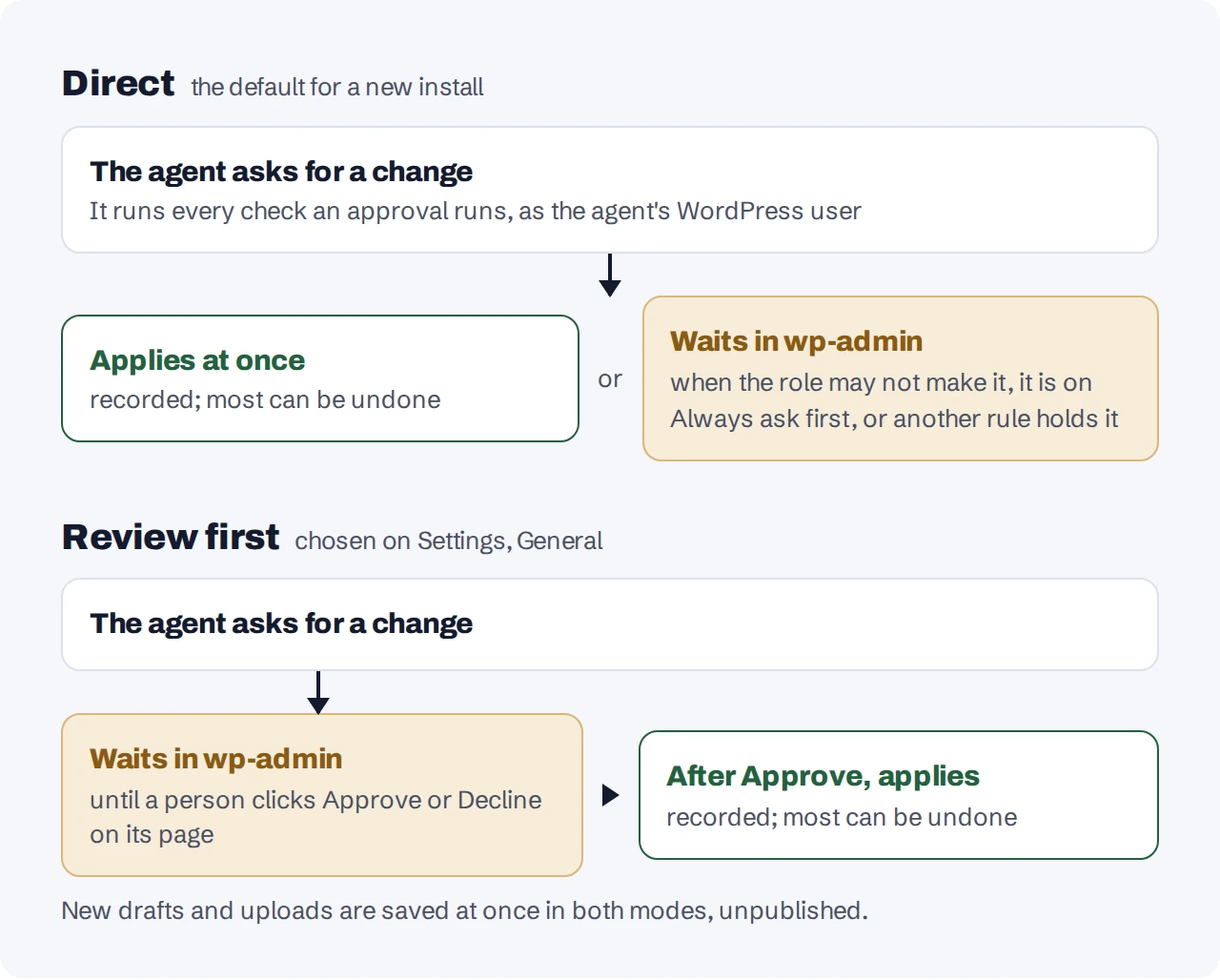
On our box lab on 23 October 2026, a six page Gutenberg site built by a fixed plan of 38 tool calls applied 14 changes inside the agent's own calls in Direct and needed 3 approvals, in 19 seconds.
What do I need before installing?
WordPress 6.9 or later, PHP 8.2 to 8.4, HTTPS, and a backup from the last 24 hours. This version does not install on WordPress 6.4 to 6.8; sites there stay on Widejoin 0.6.1 or earlier with the update tools only. Multisite is not supported.
Use a staging copy for the first run.
How do I install Widejoin?
Check the site. WordPress 6.9 or later, PHP 8.2 to 8.4, HTTPS and a recent backup.
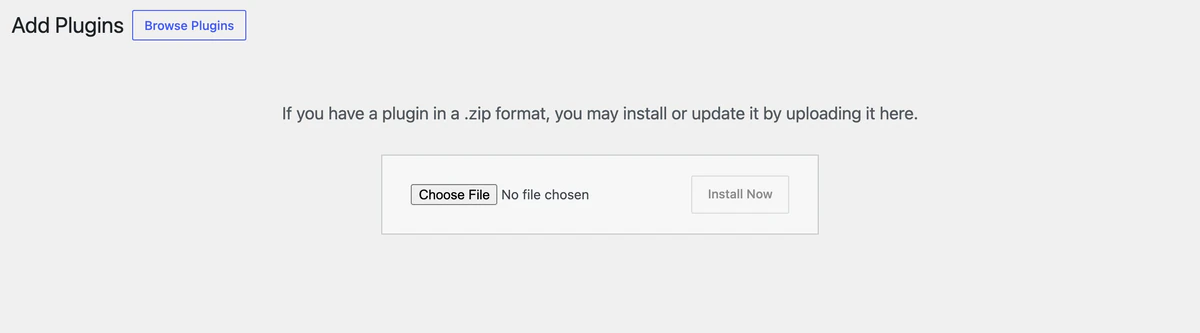
Upload the plugin. Download the Widejoin ZIP from the download page, then go to Plugins > Add New > Upload Plugin, choose it, click Install Now, then Activate.
Create the connection. Activation opens the Widejoin screen in wp-admin, which is the setup until an agent is connected. Choose the role, Editor or Administrator, and click Create connection. That one click installs or activates the MCP Adapter 0.7.x, creates the agent's WordPress user and a password, tests it and shows the details with Copy buttons. On a host that blocks plugin installs, the click creates nothing and says how to add the Adapter by hand. Without the Adapter, Widejoin stays active but serves no tools.
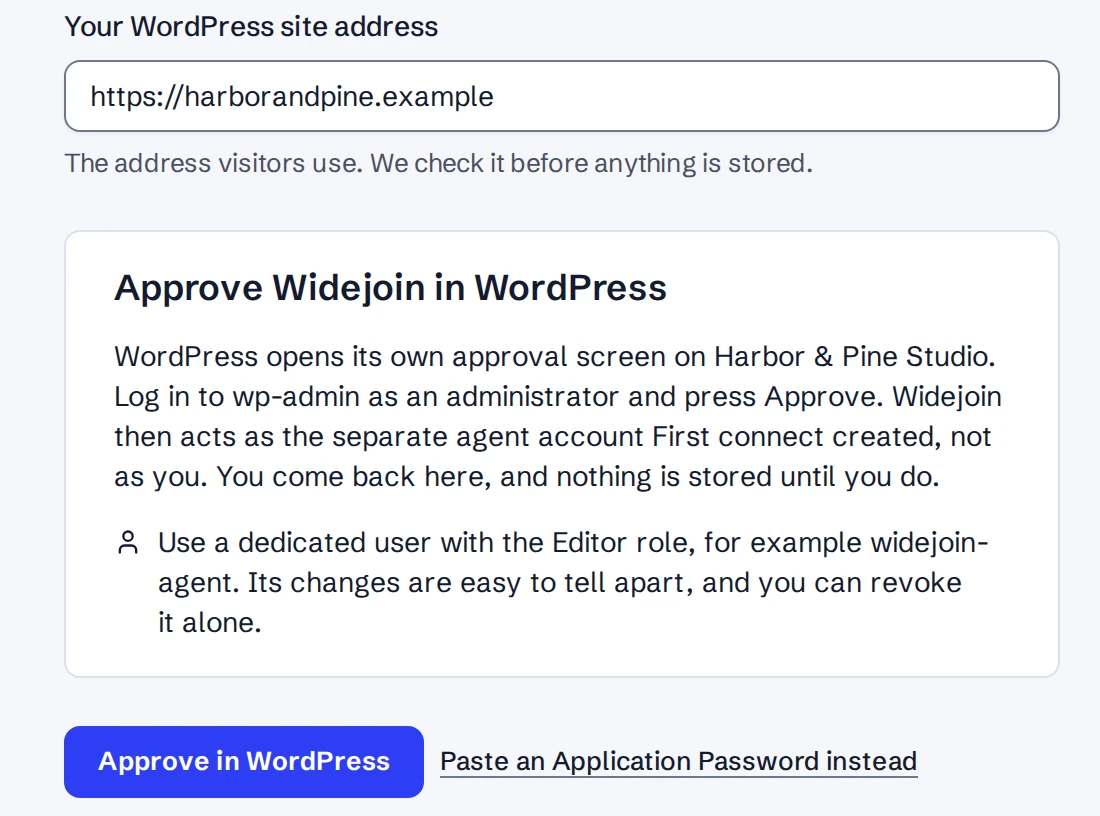
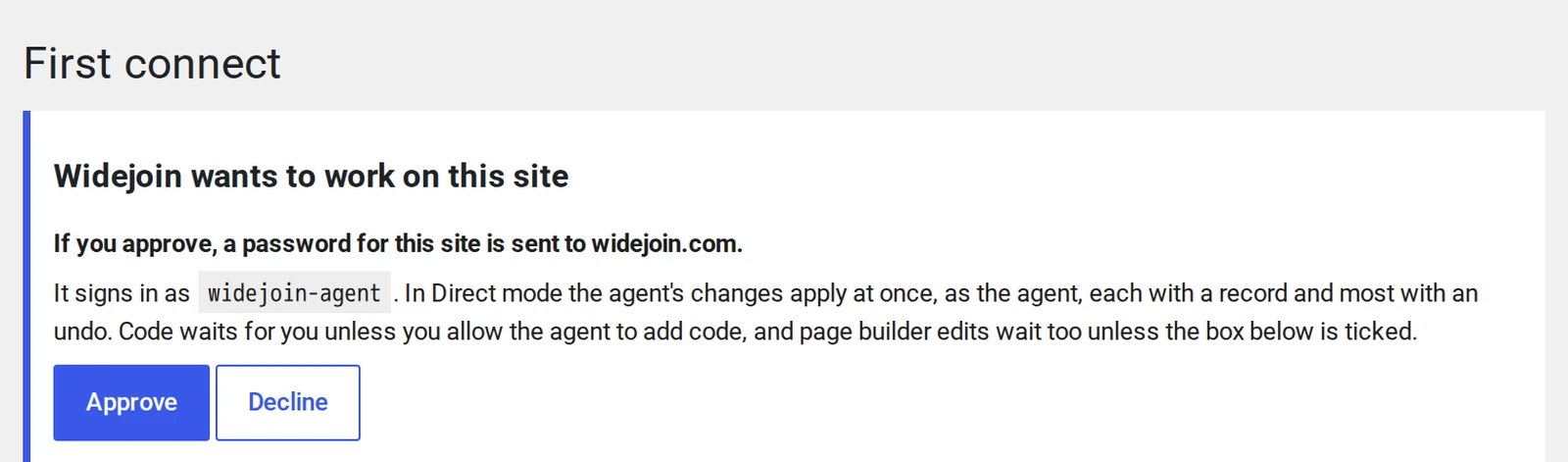
Connect the site from the dashboard. In the Widejoin dashboard, open Sites, click Connect a site and click Approve in WordPress. Approve creates the agent's user with the role you choose there, if step 3 has not made one. "Connect with a Widejoin account" on that screen opens the sign-up with your site's address. Without the dashboard, paste the details from step 3 into your MCP client; Connect a site lists each client.
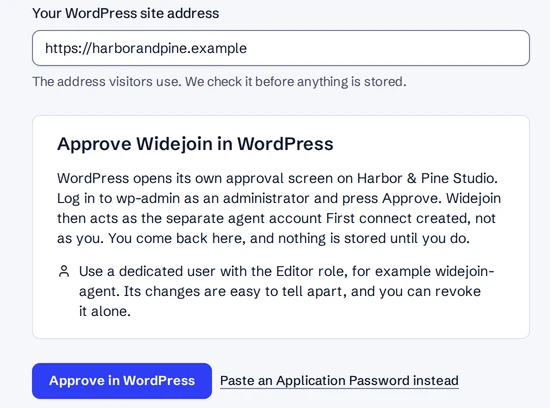
In the dashboard: type the address, then Approve in WordPress. 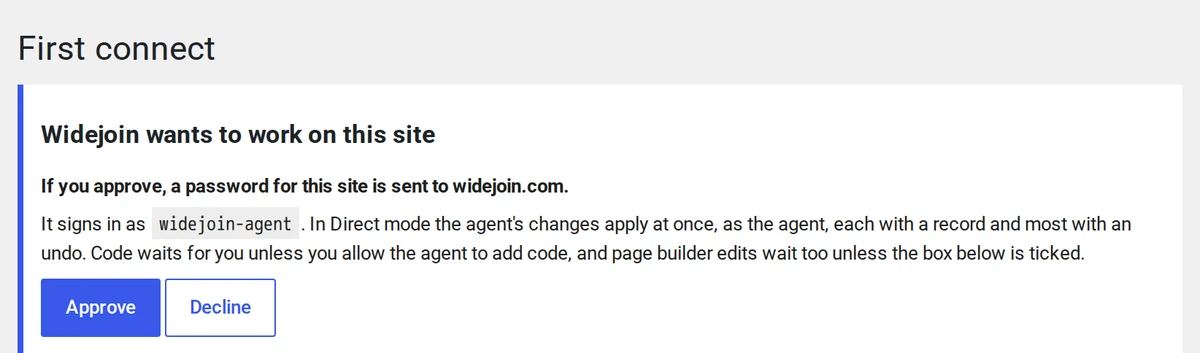
Then this screen opens in your own wp-admin; click Approve and you are back in the dashboard. The page builder box it mentions is further down the same screen. Add Pro if you have a plan. Download the Pro ZIP from the License screen, which is Pro in the dashboard sidebar. Upload it the same way and paste the license key on the Pro tab.
Widejoin needs Adapter 0.7.x (0.7.1 is current on WordPress.org); on 0.8.0 or later it serves no tools until an update supports that version. Already running Widejoin? Install the Adapter before you update, and read the changelog for what the new version changes. What the WordPress MCP Adapter does on its own covers what it serves, the versions that work and what Widejoin adds.
Where do I see and approve changes?
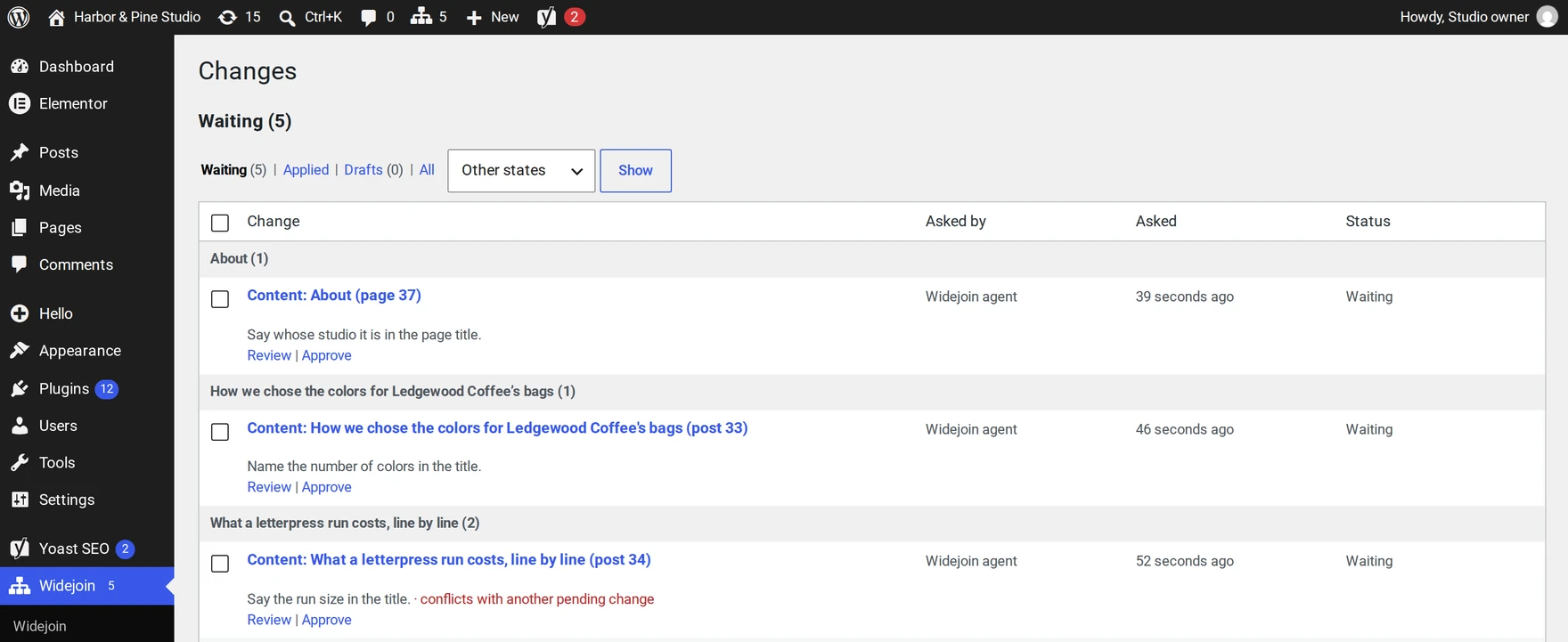
In wp-admin, on the Changes screen under Widejoin. Waiting lists what needs a person, and the admin menu and the admin bar show how many are waiting. Applied lists what already went live, including changes applied in Direct. Open a change to read what it changes and check the preview, then click Approve or Decline at the top. The full data sits under Technical details. How it works walks through one change.
How do I undo a change?
Ask the agent to undo it. It calls restore-change with the change's id, and on a site in Direct the undo applies in that same call. In wp-admin, open the applied change and choose Undo this change. If someone edited the same field since, restore is refused so their edit is not lost. A core update, a plugin database upgrade, mail already sent and another plugin's ability cannot be restored at all: the change's answer says restorable: false with its restore_reason, and a restore of one is refused at once with not_restorable. Undo a change has the details.
What are the limits?
Requests over 2 MB are refused. A pending change can be approved for 3 days by default, and an administrator can set 1 to 14 days. Change snapshots are kept for 30 days and audit rows for 90 days when WP-Cron runs. Deleting the plugin removes its data unless an administrator chose to keep it.
The security page covers what the Application Password can reach.
Questions
Can I install it on WordPress 6.8?
No. This version needs WordPress 6.9 or later. Sites on 6.4 to 6.8 stay on Widejoin 0.6.1 or earlier, which carries its own copy of the Adapter and serves the update tools only. Upgrade WordPress to 6.9 and install the MCP Adapter to get this version.
Why does WordPress 6.8 only get the update tools?
Sites on 6.8 run an older Widejoin build, 0.6.1 or earlier. Most of its tools need the Abilities API, which is part of WordPress core from 6.9, so on 6.8 it serves the update tools only.
Can I use my admin login?
Please do not. Use a dedicated user and an Application Password you can revoke.
What happens to my data if I delete the plugin?
Its tables and settings are removed, unless an administrator chose to keep them.
Do changes apply at once or wait for approval?
A new install starts in Direct, where most changes apply at once as the agent's own WordPress user, and each one is recorded. A plain text, image or button edit in a page builder applies at once when the option for it is on. Builder code and templates wait for or need an administrator. Review first is a per-site option an administrator turns on in wp-admin, and then every change waits for a person.
How long do pending changes wait?
Three days by default, and a site that saved its own number keeps it. An administrator can set 1 to 14 days. After that a pending change expires and the agent makes it again.
Guides
- InstallInstall Widejoin on WordPress 6.9 or later with PHP 8.2 to 8.4: upload the ZIP, activate it, click Create connection in wp-admin, and check the requirements.
- Connect your AI clientYour Widejoin MCP server is widejoin.com/mcp. Make a token, paste one command or config block, and see how Claude Code and Cursor were tested.
- RestoreHow to restore a change your AI agent made: ask the agent to undo it in one call or restore it from wp-admin, and which changes cannot be restored.
- Review firstSwitch a WordPress site to Review first so each AI change waits for a person in wp-admin, see what still applies at once, and approve in Changes.
- TroubleshootingErrors we hit connecting AI clients to WordPress through Widejoin, from HTTP 401 at widejoin.com/mcp to Session not found, and the fix for each one.
AI clients
- Claude Code WordPress setupConnect Claude Code to WordPress with one claude mcp add command and widejoin.com/mcp. What we tested on Claude Code 2.1.296, first requests and limits.
- ClaudeConnect Claude to WordPress with the free Widejoin plugin and its MCP server. Steps for Claude Code and Claude Desktop, where the claude.ai connector stands (not tested yet), and what the free plan and trial include.
- Cursor WordPress MCP setupConnect Cursor to WordPress: the mcp.json block our scripted test checks, the free plugin and user it needs, what to ask first and what we did not test.
Before you install
- the official WordPress MCP Adapter, and what Widejoin addsThe WordPress MCP Adapter turns Abilities into MCP tools. What it serves alone, how to install 0.7.x, and what Widejoin adds for builders and WooCommerce.
Point your agent at a client site today.
14 days of Pro on up to 10 sites. No card. Connect your client and ask for a page in the builder you already use.